Groups and modules
Groups decide what people see: which parts of the app (modules), which agents and which documents. Someone in several groups gets everything their groups have. Admins always see everything.
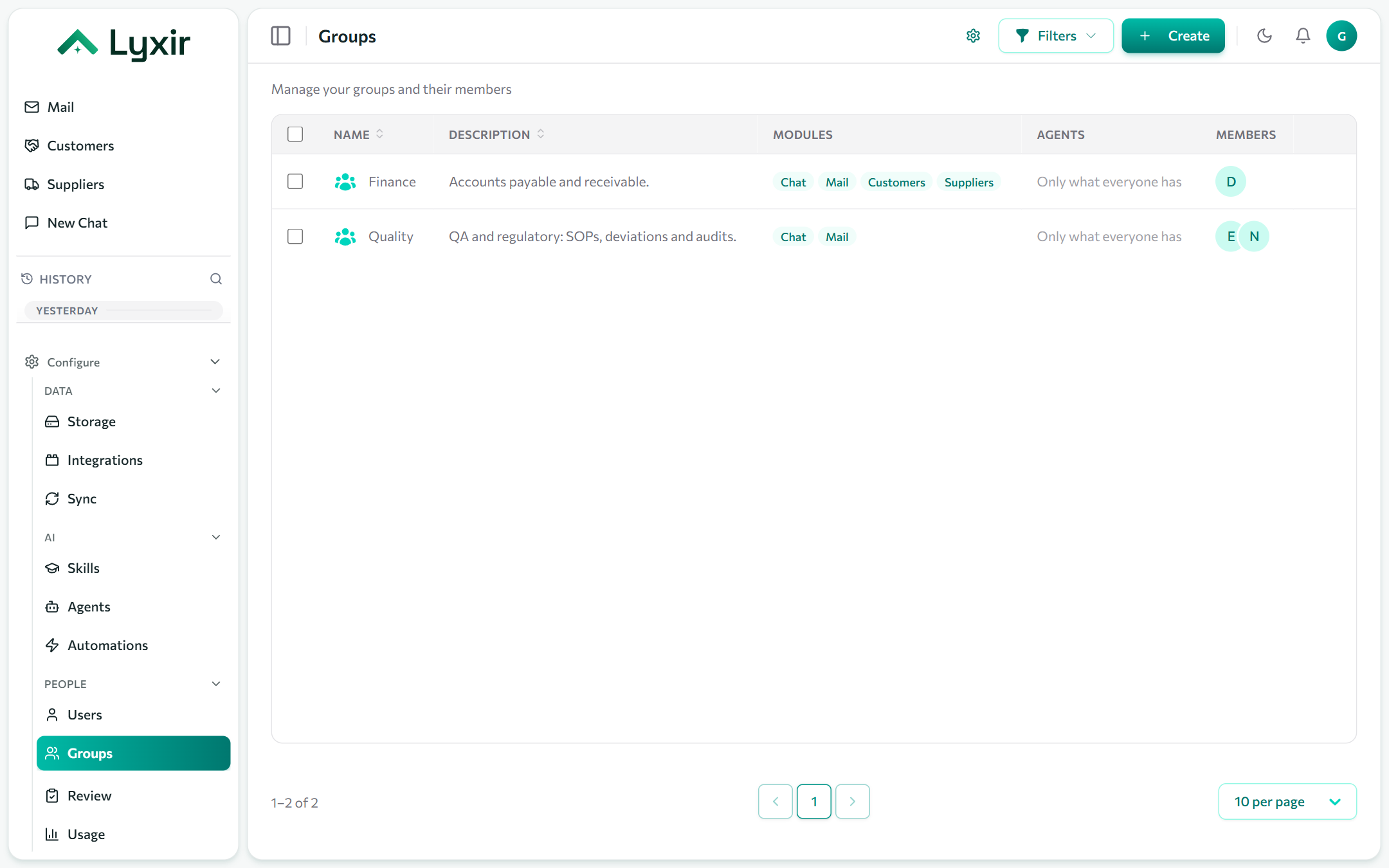
Creating a group
- Groups → Create.
- Name it and say who it is for (Quality: SOPs, deviations and audits).
- Pick its modules and agents, then add members.
Modules
Modules are the parts of the app a group's members see.
| Module | Gives |
|---|---|
| Chat | The web chat and the floating assistant: ask agents, search knowledge. |
| The team's mailboxes: read, sort and answer them, with agents drafting replies. | |
| Customers | The workspace's customers, kept here or synced from your system; their mail is marked in Mail. |
| Suppliers | The same for suppliers. |
| MCP | Connect Claude Desktop, Claude Code and other AI apps with an access token: they search the workspace as the person and can ask agents set up for MCP. |
Three levels decide who sees a module:
- The workspace (the ⚙ on the Groups page): the modules your workspace uses at all. Switching one off hides it from everyone.
- Each group: the modules its members see.
- People in no group: their own set, on the same ⚙ page.
Modules decide what people see, not what agents know: an agent answering in Slack still searches with that person's access.
Agents
- Agents for all users (on the Users page): agents every user may use, in a group or not.
- A group's agents: on top of everyone's, for its members.
- One person's: on the Users page.
Documents
Uploaded documents can be shared with groups: members find them, others don't. Open a group's Articles to assign documents. A document assigned to groups is visible to those groups and its uploader only; unassigned from every group, it becomes private to its uploader.
Documents from integrations keep their source's own sharing (Drive, SharePoint, mailboxes), whatever the groups.