Automations
An automation runs an agent on its own: on a schedule, when something happens, or when someone presses Run now. It sends what it found to people, groups, email addresses, a Slack channel or a webhook.
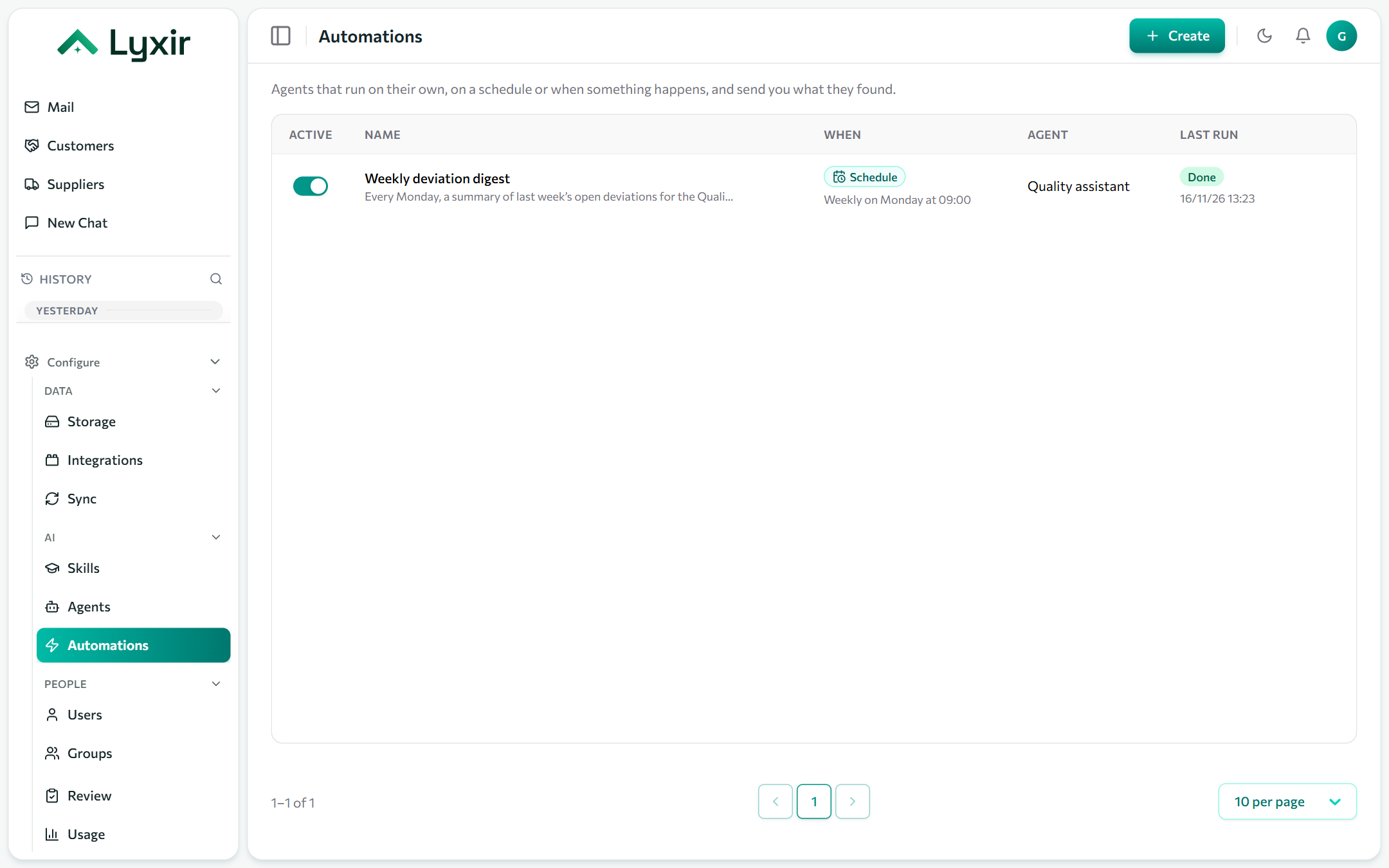
Creating an automation
- Automations → Create.
- Fill in the form, or describe it to the builder assistant (✦).
- Save. It runs from the next time it is due.
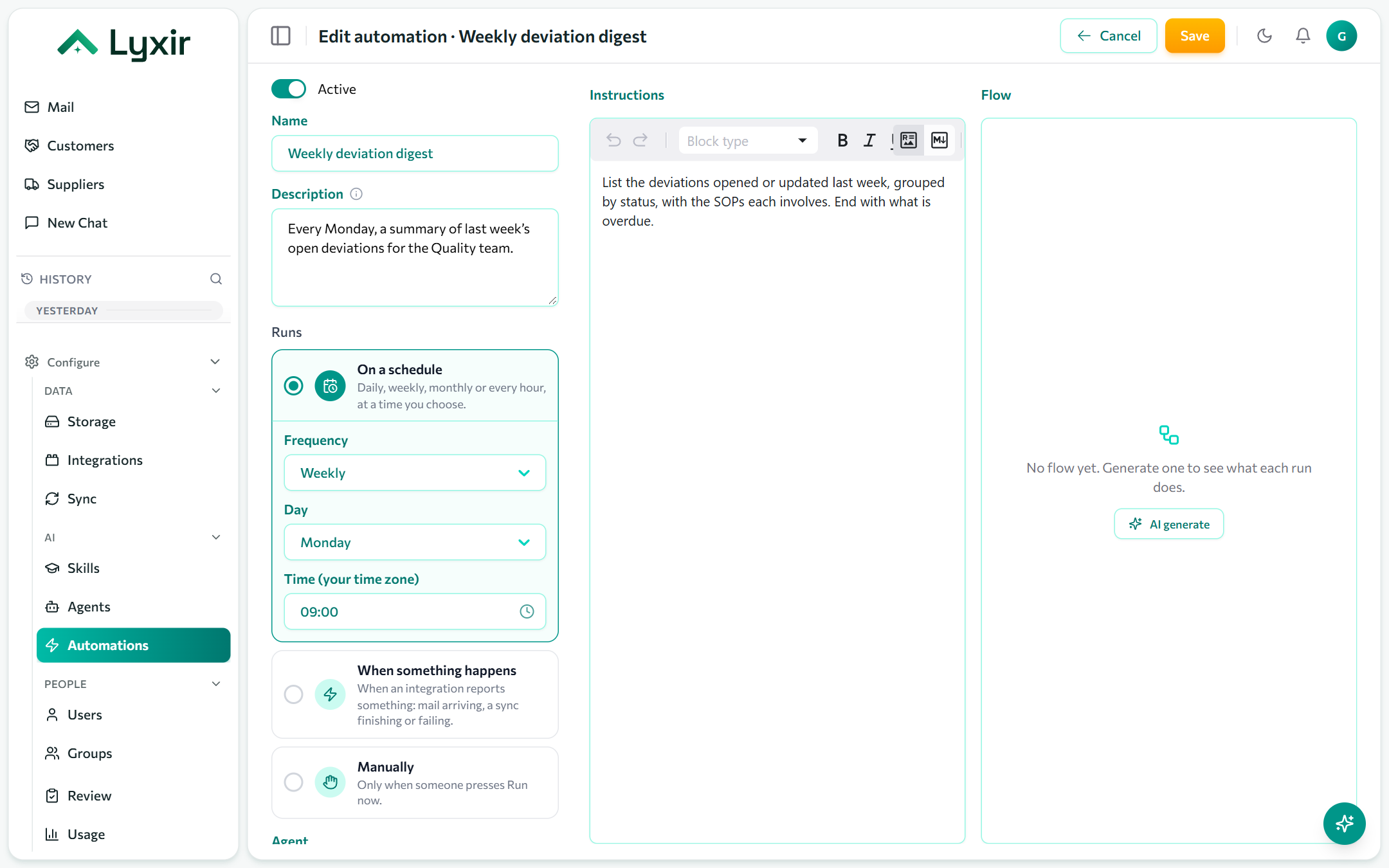
When it runs
| Option | Runs |
|---|---|
| On a schedule | Every hour, daily, weekly, every 2 weeks or monthly, at a time in your time zone. |
| When something happens | When an integration reports an event: mail arriving in a mailbox, a sync finishing or failing, a webhook being called. Pick several and any of them starts a run. |
| Manually | Only when someone presses Run now. |
An event run is told what happened (the mail's sender, subject and class, which sync finished), so the instructions can say what to do in each case. Max runs per hour caps how often events may start it.
What it does
| Field | What it does |
|---|---|
| Agent | Which agent runs: its tools, sources and skills. |
| Instructions | What each run does, e.g. "List last week's open deviations by status and end with what is overdue." |
| Skill | A skill that carries the task instead of, or alongside, instructions. One of the two is required. |
| Flow | AI generate draws what each run does, as a check. |
Where the result goes
Send it to people and groups (an in-app notification), email addresses, a Slack channel, or webhooks. Every run is also kept in the automation's history either way, and a failed run always notifies the person it runs as.
Whose rights it runs with
An automation runs as the person who created it: their agents, their knowledge, and their approval for any change it proposes. Each run is a conversation of theirs that they can open in chat and continue.
Runs
Runs on an automation lists every run, newest first: when, how it went, and its full result. A run that proposed a change waits until it is confirmed on the Review page.