 Microsoft 365
Give IT agents your Microsoft 365 (Entra ID) directory: look people up, and propose suspending and re-enabling accounts, signing people out, resetting passwords, and changing groups and licenses. Every change waits for a person's confirmation.
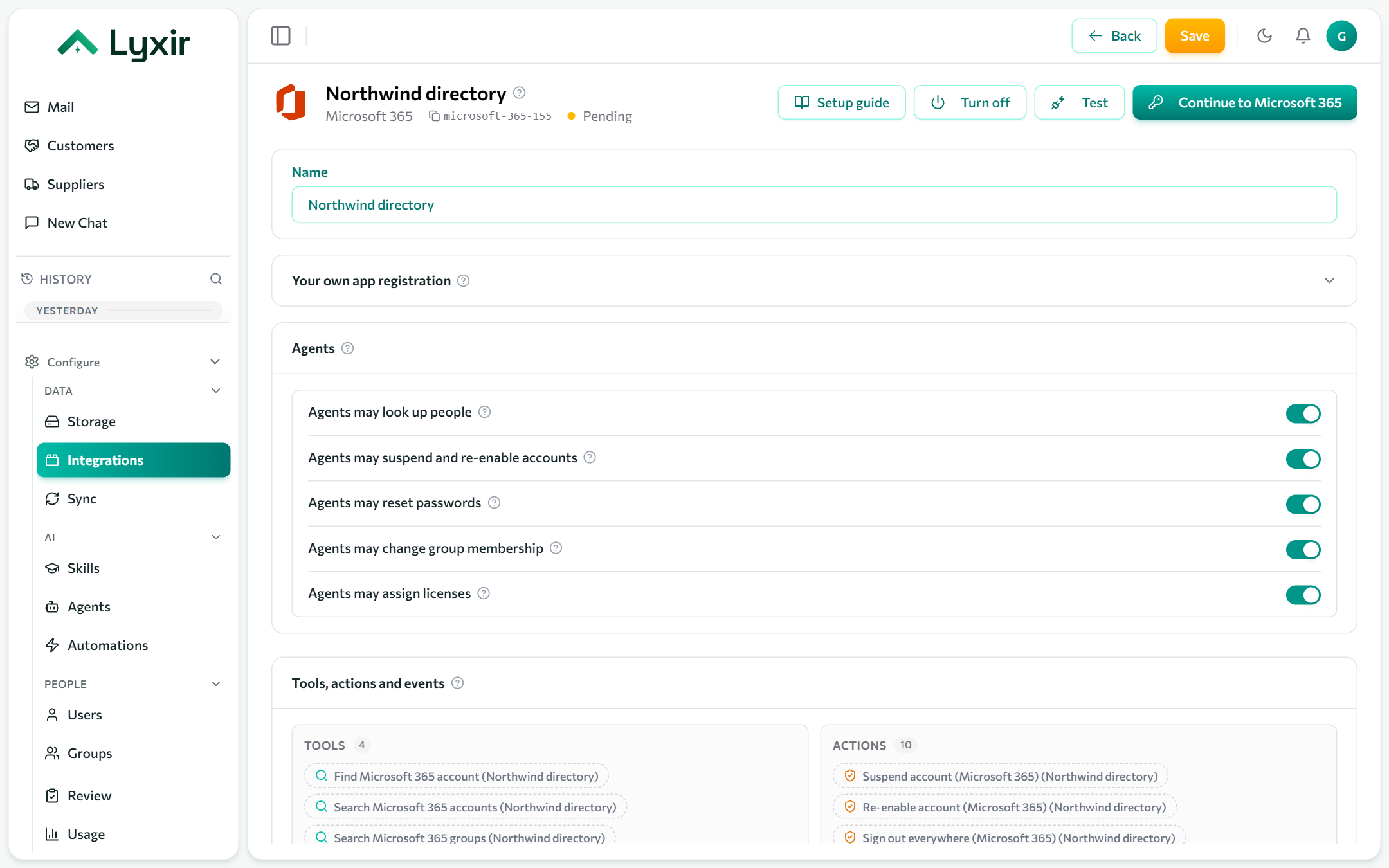
Connect with Microsoft
- Integrations → Add → Microsoft 365.
- Click Connect with Microsoft and sign in as an admin of your organisation.
- Approve the access Microsoft asks for (reading and changing users, group membership and licenses). This needs admin consent.
- Choose what agents may do (below) and Save.
Connected this way, Microsoft also checks the role of the admin who signed in on every change. A User Administrator can suspend people or reset their passwords, but not a Global Administrator's. Changing licenses needs the License Administrator role or higher.
Or: your own app registration
To connect without anyone signing in, use your own Entra app with application permissions.
-
Microsoft Entra admin center → App registrations → New registration. Single tenant is fine; no redirect URI.
-
API permissions → Add a permission → Microsoft Graph → Application permissions:
User.ReadWrite.All,User-PasswordProfile.ReadWrite.All,Group.Read.All,GroupMember.ReadWrite.All,LicenseAssignment.ReadWrite.All. Then Grant admin consent. -
Certificates & secrets → New client secret. Copy its Value at once: Entra shows it only when it is created.
-
On the connection, open Your own app registration and fill in:
Field Where to find it Directory (tenant) id The app's Overview page: Directory (tenant) ID. Application (client) id The app's Overview page: Application (client) ID. Client secret The secret's Value (not its Secret ID). -
Save, then Test.
:::caution Admin accounts An app registration cannot change the password or sign-in of an administrator unless you also give the app a privileged Entra role. This is Microsoft's safeguard; keep it. :::
What agents may do
Each switch is off until you turn it on. Agents only propose changes: the person who asked confirms each one, and your approval rules can require someone else to approve it as well.
| Switch | What it offers |
|---|---|
| Agents may look up people | Find an account (whether it can sign in, its groups and licenses), search accounts and groups, list your licenses with free seats. |
| Agents may suspend and re-enable accounts | Suspend an account (sign-in blocked, nothing deleted), re-enable it, and sign someone out everywhere. |
| Agents may reset passwords | Reset a password. A new one is generated and must be changed at the next sign-in. |
| Agents may change group membership | Add someone to a group, remove them from one, or from all of them (for offboarding). |
| Agents may assign licenses | Assign a license, remove one, or remove all of them. |
New passwords
The agent never sees a new password, and it never appears in the chat or on the Review page. Once the reset is done, the person who asked for it gets a Reveal password button on the action's card. It shows the password once: copy it and pass it on safely. A password not revealed within 24 hours is erased.
Members (not admins) can only ask for changes to their own account, so self-service password resets work without giving them power over anyone else.
Good to know
- Groups whose membership follows a rule (dynamic groups), and mail-enabled security groups managed in Exchange, cannot be changed here. The action says so.
- A license needs the person's usage location set in Entra. Microsoft refuses the assignment otherwise.
- A license that comes from a group can only be removed by removing the person from that group.