 Microsoft OneDrive
Ingest the Word, PowerPoint, Excel, PDF and text files of a person's Microsoft 365 OneDrive, keeping its sharing.
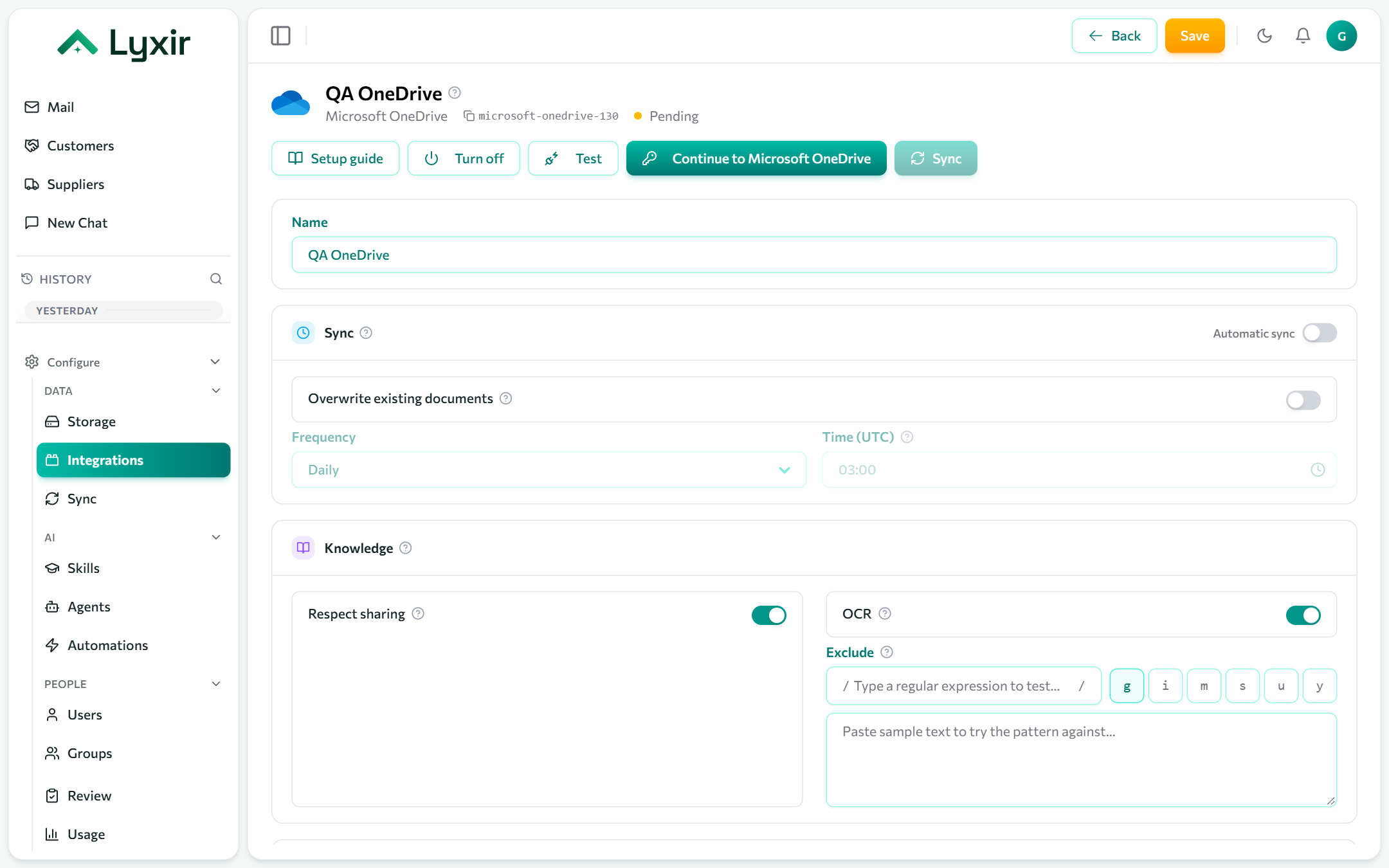
For a personal OneDrive, use Microsoft OneDrive (personal). For team sites, use Microsoft SharePoint.
Connect with Microsoft
- Integrations → Add → Microsoft OneDrive.
- Click Connect with Microsoft and sign in as the OneDrive's owner.
- Approve the access Microsoft asks for (an admin may need to approve the app once for the organisation).
- Choose the settings below and Save. The first sync starts.
Or: your own app registration
- Microsoft Entra admin center → App registrations → New registration. Single tenant is fine; no redirect URI.
- API permissions → Add a permission → Microsoft Graph → Application
permissions:
Files.Read.All,Sites.Read.All,GroupMember.Read.All,User.Read.All(Files.ReadWrite.Allfor agents that change files). Then Grant admin consent. - Certificates & secrets → New client secret; copy its Value at once.
- On the connection, open Your own app registration: Directory (tenant) id and Application (client) id from the app's Overview page, the Client secret Value, and the User whose OneDrive is read.
- Save, then Test.
What to ingest
| Setting | What it does |
|---|---|
| Respect sharing | Only show a file to the people it is shared with. Files shared with the organisation are visible to everyone allowed this connection. |
Sync, OCR and exclusions: see Common settings.
What agents may do
| Switch | Gives agents |
|---|---|
| Agents may list folders | A tool listing a folder as it is right now, including files not indexed yet. Anyone using such an agent sees the names of every file this account can open. |
| Agents may create and change files | Proposed new folders and text files, content replacements, renames and moves, each run as this account once a person approves it. |
| Agents may delete files | Proposed moves to the OneDrive recycle bin, where they can be restored. |