Customers and suppliers
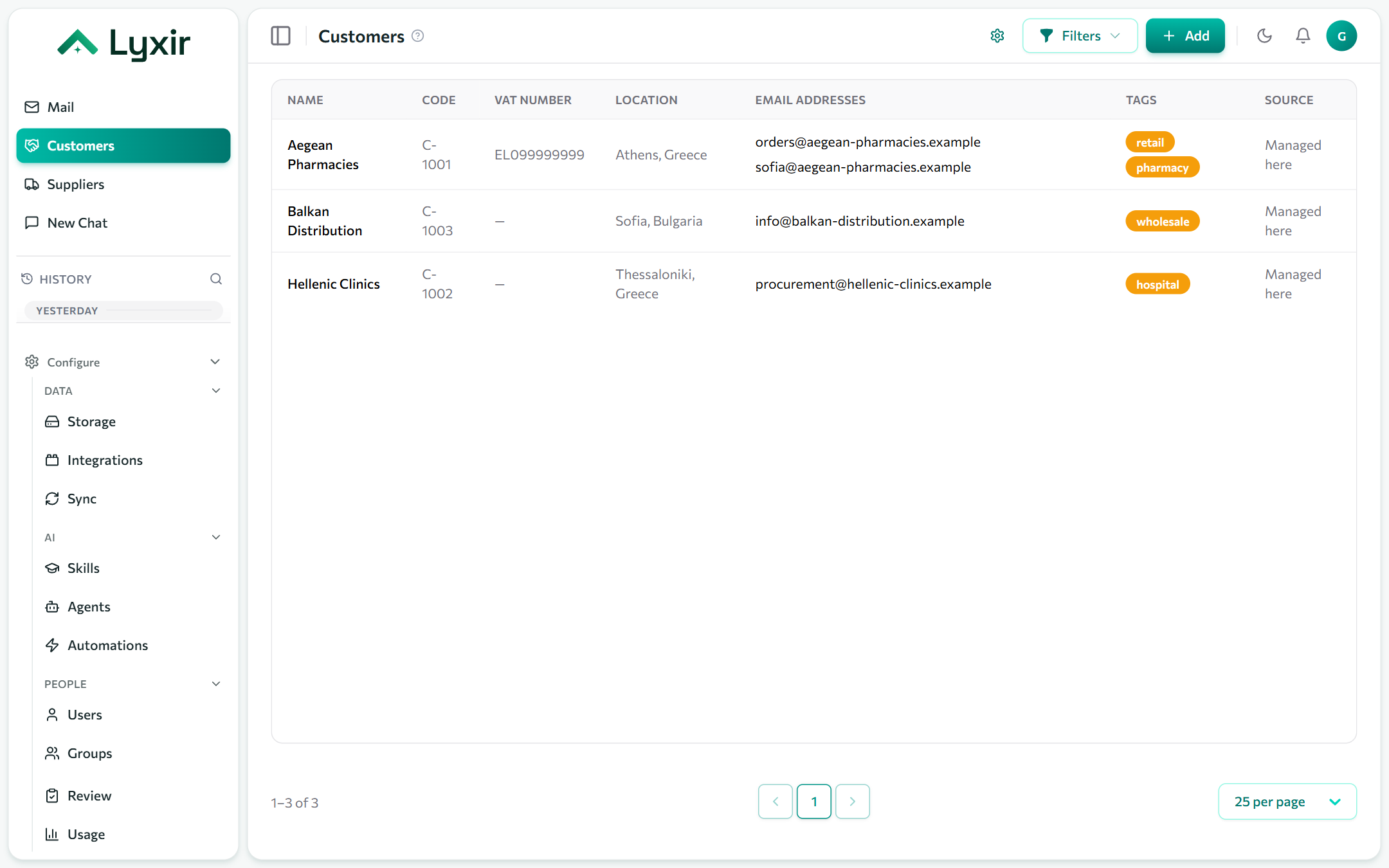
Customers and Suppliers are two lists of the companies you deal with, and the email addresses they write from. They work the same way. Each is a module of its own, so a group can have one, both or neither (see Groups and modules).
With them:
- Mail marks every message from or to a listed address with the customer or supplier, and can show only their mail.
- Agents drafting a reply know who they are writing to: name, code, VAT number and the contact person.
- Agents can look companies up in chat ("what are Aegean Pharmacies' payment terms?"). They search a list only for people who have that module.
Adding one
Add customer (or Add supplier) asks for a Name. Everything else is optional:
| Section | Fields |
|---|---|
| Company | Legal name, code (your own reference, such as an account number), VAT number, tax office, registration number, website. |
| Email and phone | The company's own addresses (orders@, info@…) and phone numbers. Type one and press Enter, or paste several. |
| Contact people | Name, role, email and phone of the people you deal with there. |
| Address | Street, city, postal code, region, country. |
| Terms and tags | Currency (EUR), payment terms (60 days), tags for filtering, and Active. |
| Notes | Anything worth knowing: agents read it too. |
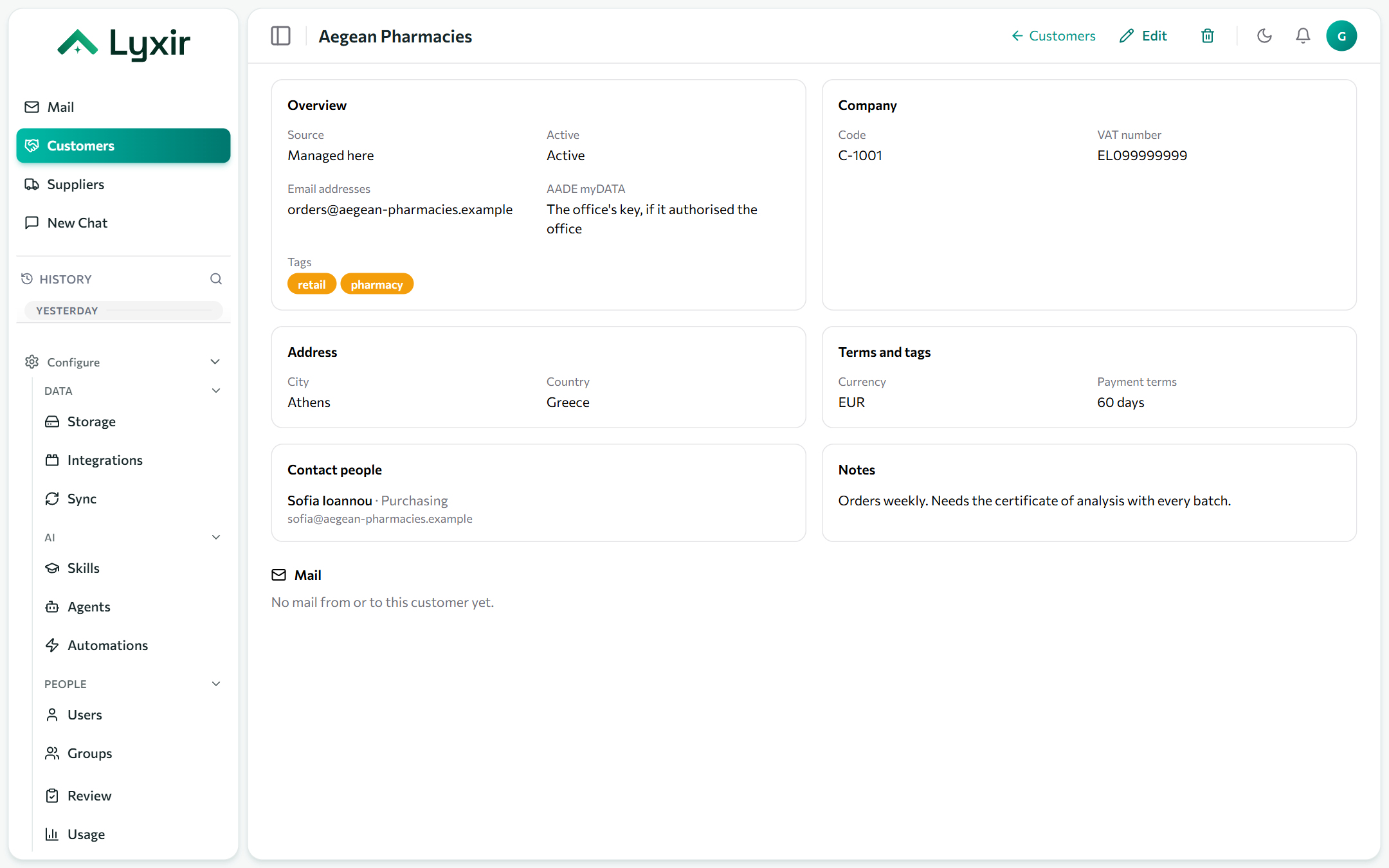
Each company's page shows its profile and its Mail: every message received from it or sent to it.
How mail is matched
Mail matches exact addresses, not domains: the company's addresses and its contacts' addresses. A contact writing from a personal address (gmail.com and the like) is matched by that address only, and nobody else at gmail.com is. A company with no address gets no mail marked.
Inactive entries stay on the list, and in Mail, but can be filtered out.
Importing from a spreadsheet
Import reads a CSV with a header row; Excel's CSV export works, with
commas or semicolons. Only name is required. These columns are read too:
code, emails (several separated by ; or ,), legal name, VAT number, tax
office, registration number, phone, website, street, city, postal code,
region, country, currency, payment terms, tags, active and notes. Common names
work as well (company, AFM, DOY, zip…). Download a template gets a file
with the columns already in place.
Importing the same file again is safe. An entry with the same code is updated; with no code, the same VAT number; with neither, the same name. A column the file leaves out keeps what the entry already has. Rows that can't be read are listed by line number.
Kept here, or synced from your system
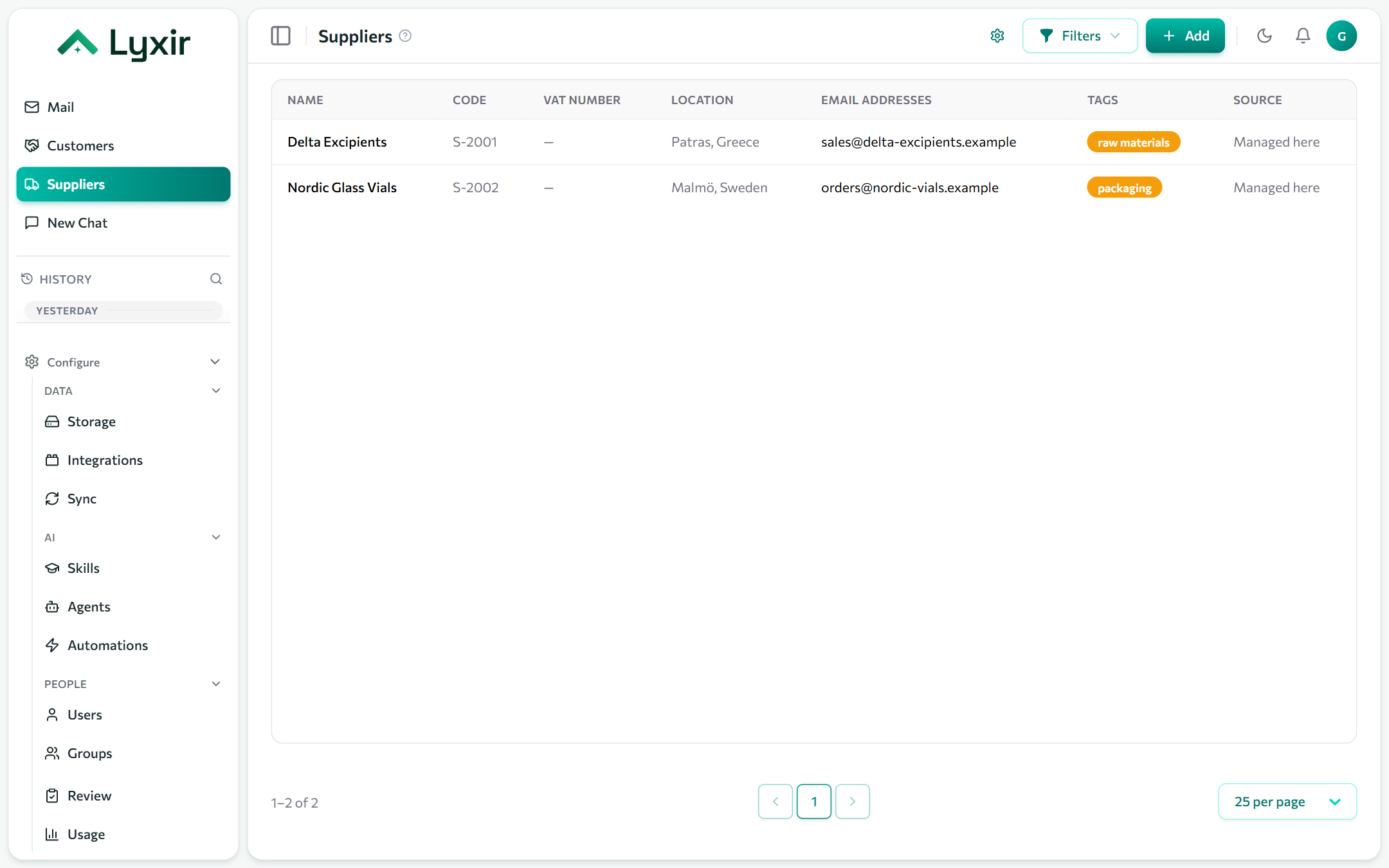
Admins choose where a list comes from with the ⚙ button on its page:
- Managed here (the default): your team adds and edits entries, or imports them.
- Synced from your system: the list comes from a database table or an API request mapped as that list on its connection. It is read-only here and refreshed on every sync, so you edit entries in your own system. Until a connection is mapped, the dialog says so.
Switching from managed to synced deletes the entries managed here: the synced ones replace them. Switching back keeps the synced entries and makes them editable here, and the connections stop updating the list.
For accounting offices: myDATA per client
With the AADE myDATA for accounting offices integration, a customer with a VAT number (ΑΦΜ) is one of the office's clients. Its AADE myDATA section holds the client's own myDATA user and subscription key. If you leave them empty, the office's key is used for clients who authorised the office on myDATA. The key is stored encrypted and never shown again.