Mail is the team's shared mailboxes in one place. People read, sort and answer mail there, and agents help them: they sort incoming mail into classes, draft replies, and say who each message is from. People see Mail when one of their groups has the Mail module (see Groups and modules).
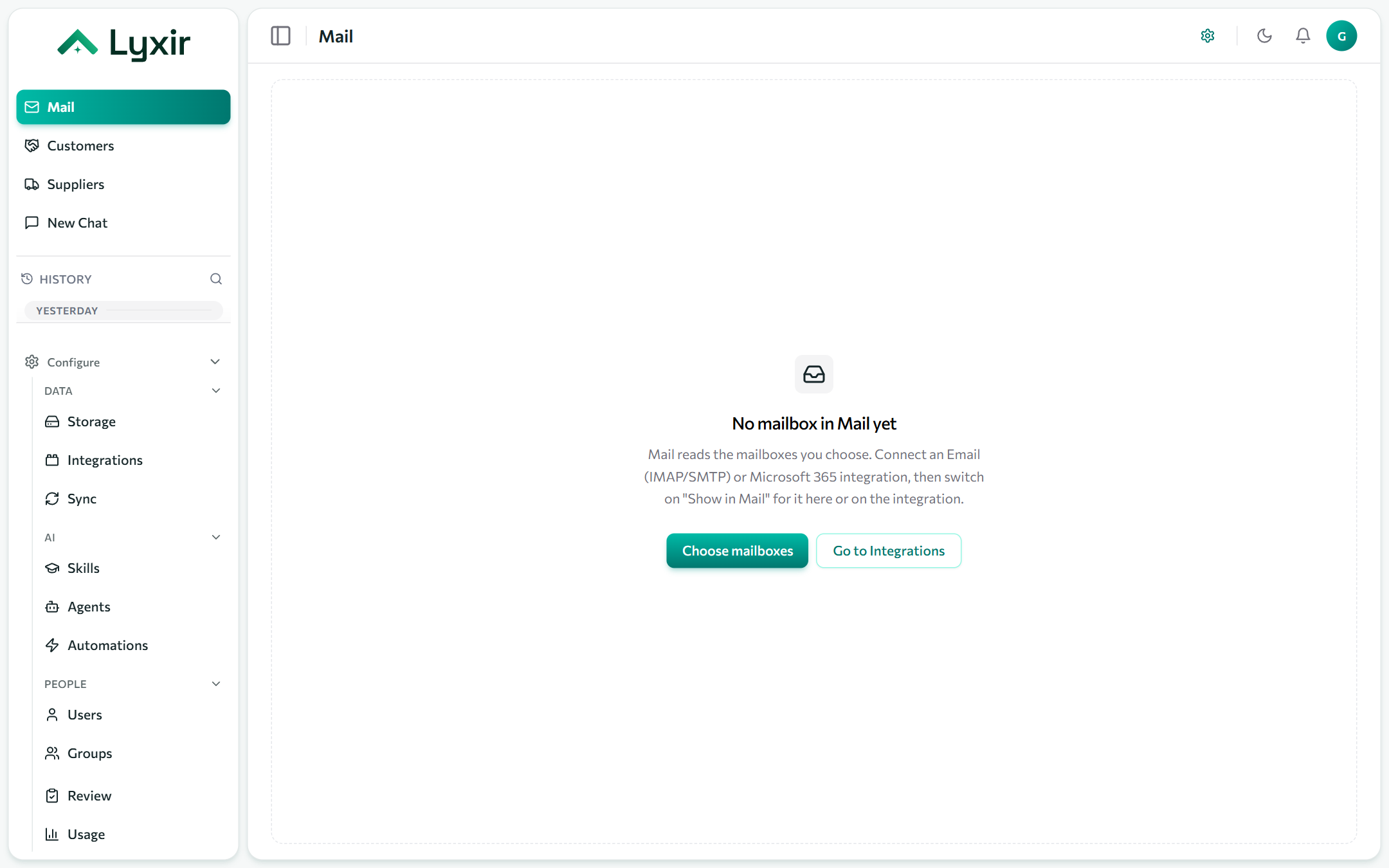
Setting it up (admins)
- Connect a mailbox: Email (IMAP/SMTP), Google Gmail or Microsoft Outlook, or their personal versions.
- Switch on Show in Mail, either on the connection or under Mail → ⚙ Mail settings → Mailboxes. Mail reads the mailbox but never changes it: nothing is moved, deleted or marked read at the provider.
- Pick the Folders Mail reads. Choose them from the mailbox's own folders, or type one in, such as a subfolder or a Gmail label.
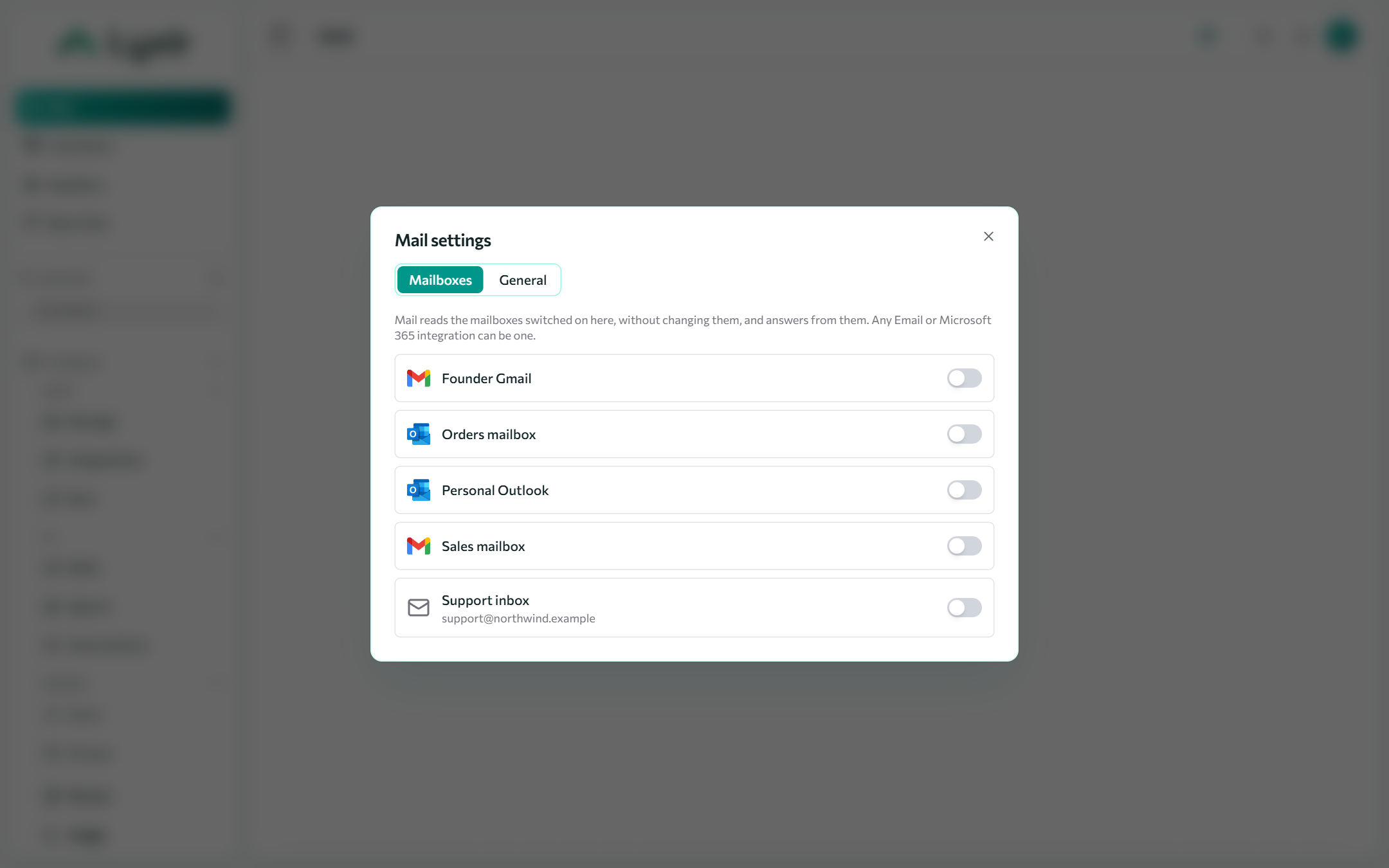
Check now fetches new mail straight away; otherwise Mail checks on its own, regularly. The time of the last check, and the last error if there was one, appear under each mailbox.
General settings
| Setting | What it does |
|---|---|
| Make mail searchable by agents | Adds mail (not noise) to the built-in Mail knowledge source. Agents search it only once they are given that source. |
| Tell people about new mail | Everyone with Mail gets a notification when a mailbox brings in new messages. |
| Agent that drafts replies | The agent used when the person drafting doesn't pick one. If you leave it empty, the default agent drafts. Only agents with Used in: Mail are offered (see Agents). |
| Signature | Added under every message sent from Mail. |
Finding mail
The left-hand column lists every mailbox. All mailboxes shows them together, and each mailbox opens to its own:
- Inbox, Done, Sent and All mail. Done is where mail goes once it is dealt with, like archiving.
- Classes: the kinds of mail the mailbox sorts into (below), plus Needs triage (the classifier wasn't sure) and Unclassified.
- Matched to → Customers / Suppliers: only mail to or from them. These show only for people with the Customers or Suppliers module.
- Unread only.
The filter button narrows further: text, sender, mailbox, class, attachments, read state and a date range.
Reading a message
The reader shows the whole conversation, with its attachments (preview, download or download all). It blocks remote images until you click Show images, and you can switch between Formatted and Plain text.
| Button | Does |
|---|---|
| Reply | Opens the composer under the message. |
| Draft with agent | An agent writes the reply for you to check (below). |
| Done / Back to inbox | Moves the message out of the inbox, or back. |
| Mark unread | Back to unread. Read state is the team's, not each person's: a message one person opened is read for everyone. |
| Set class / Classify again | Puts the message in a class by hand, or has the classifier look again. |
A classified message shows its class, why the classifier chose it and how sure it was, or Set by a person. A class a person set is never changed by the classifier, except when someone clicks Classify again.
Writing and drafting
New mail or Reply opens the composer: pick From, then fill in To, Cc (separate addresses with commas), Subject and the message. Mail adds the signature, and Mark the message done after sending files the original away.
To have an agent write it, pick the Agent and say what the email should say ("ask Delta Excipients for the signed contract by Friday"), then click Draft. The agent reads the conversation and what it knows about the sender. When a customer or supplier matches, it knows who you are writing to. The draft appears in the composer: check it before sending. Open in chat continues the conversation with the agent.
Sending from Mail is you sending: it doesn't go through Review. Agents that send mail on their own (from chat or an automation) do go through Review.
Sorting mail into classes
Each mailbox has its own classes, set on its connection under Classes (see mailbox settings):
- Switch on Classify mail.
- Add class for each kind of mail the mailbox gets, such as Purchase orders, Invoices, Complaints or Noise. The Description is what the classifier reads, so say what belongs there, not what the name means.
- Optionally give a class departments (groups). Mail lists it only to their members, while everyone still sees all of the mailbox's mail.
- Classify unclassified mail sorts the mail already there.
Each email classified is billed. Mail in a class keyed noise stays out of
knowledge.